Stirling Processor

Stirling Processor automates document workflows. Connect an input, choose the PDF operations to run, and select a destination. Run workflows on a schedule, when a folder changes, on webhook delivery, or when someone uploads or exports a file in the editor.

Use it to process files in bulk, such as running OCR on 10,000 scans, compressing a whole folder, or converting a document library, and to keep processing new files as they arrive. It can also enforce policies across your organization, so every document coming in or going out meets your standards or runs through a set process.

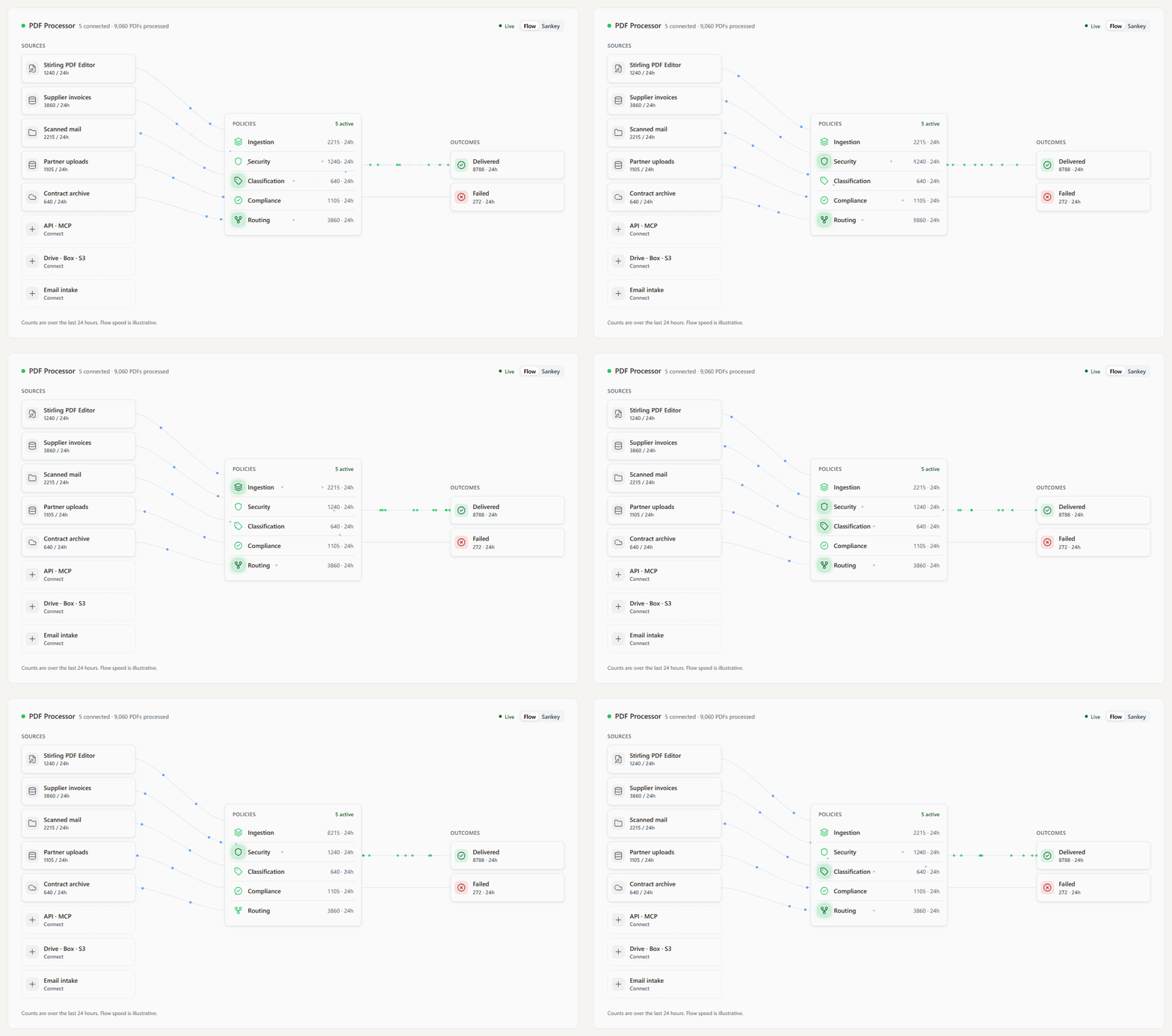
Processor home: documents from five sources flowing through five policies, with 8,788 delivered and 272 failed in 24 hours

Open Processor from the quick access bar on the left of Stirling PDF in your web browser. It is not currently accessible from the desktop app, although we will be adding it for desktop apps connected to supported environments. Administrators and team leaders have access by default. Default users or environments without login will not be able to access Processor. See Setup and access.

Start here#

Follow Create your first pipeline to connect two folders, test PDF compression, and enable automatic processing.

Pipelines list and available templates

Find your way around#

Page Use it to
Sources Connect folders, storage services, and webhooks.
Pipelines Build, test, pause, and edit workflows.
Policies Set up ready-made pipelines: Ingestion, Security, Classification, Compliance, and Routing.
Documents View recent processing activity and export it as CSV.
Review Investigate and resolve failed runs.
Integrations Save connections to external services.

Processing folders let you attach a workflow directly to a folder in the file library.

How a workflow runs#

Source → trigger → processing steps → destination

A source identifies where documents come from. A pipeline defines the operations and delivery destination. A policy enforces a pipeline during editor uploads or exports.

For example, a pipeline can watch an invoice folder, compress each new PDF, and save it to an archive. Editor workflows can return the modified document to the editor instead.