
Integrations
Save a connection once under Processor → Integrations, then use it in sources and pipelines.
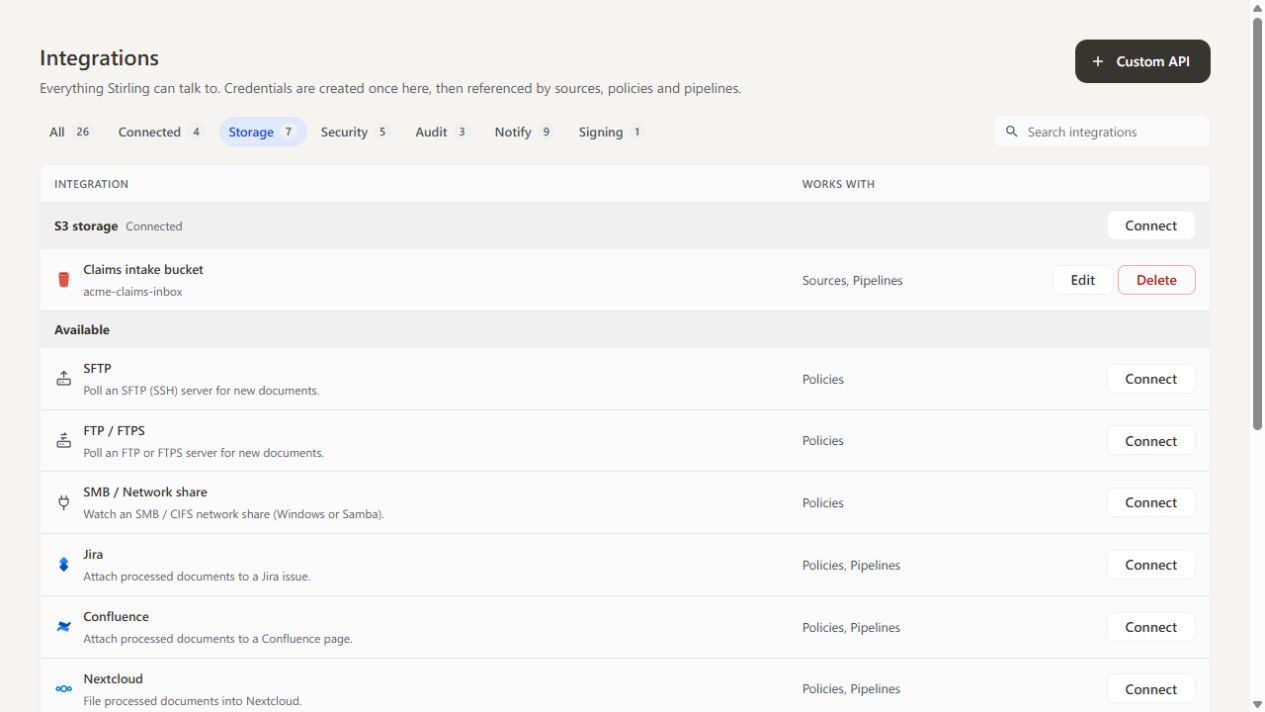
Connect a service#
- Open Processor → Integrations, find the service, and select Connect.
- Give the connection a name and enter its address and credentials.
- Select Save connection. The Works with column then shows where you can use it.
On a self-hosted server, only administrators and team owners can connect services, and Custom API needs an administrator.
Use an integration in a pipeline#
In the pipeline builder, select Add a tool and look under Send to another system. Pick what you want to happen, such as Scan for viruses or Post a message to Slack, choose your saved connection under Account and fill in the step's fields. The step runs at that point in the pipeline, like any other tool.
Storage services work differently: choose them when you connect a source, to read documents from them or deliver results to them.
Security steps can stop a run: if a scan finds a problem, the document is held back and appears in Review. Notification, email, and audit steps leave the document unchanged.
Available integrations#
| Integration | Type | What it does |
|---|---|---|
| S3 storage (Amazon S3 or S3-compatible) | Storage | Input and destination for sources |
| SFTP | Storage | Input for sources |
| FTP / FTPS | Storage | Input for sources |
| SMB / Network share | Storage | Input for sources |
| Vector database (Weaviate, Pinecone) | Storage | Destination for Ingestion chunks |
| Nextcloud | Storage | Upload the processed document to a folder |
| Jira | Storage | Attach the processed document to an issue |
| Confluence | Storage | Attach the processed document to a page |
| Cloudmersive | Security | Scan for viruses; the run stops if the file is not clean |
| Cloudmersive Advanced Scan | Security | Block documents that contain macros, executables, scripts, or embedded objects |
| ClamAV (self-hosted) | Security | Scan for viruses on your own server, so nothing leaves your network |
| Presidio (self-hosted) | Security | Detect personal data in the text you give it, on your own server |
| Splunk | Audit | Send an audit event for each document |
| Elasticsearch | Audit | Index an audit event for each document |
| Sumo Logic | Audit | Send an audit event to an HTTP collector |
| SendGrid | Notify | Email the processed document as an attachment |
| Mailgun | Notify | Email the processed document as an attachment |
| Slack | Notify | Post a message to a channel |
| Microsoft Teams | Notify | Post a message to a channel |
| Discord | Notify | Post a message to a channel |
| Google Chat | Notify | Post a message to a space |
| Zapier & Make | Notify | Trigger a Zap or Make scenario |
| n8n | Notify | Tell a workflow, send it the document, let it process the document, or ask it to approve the run |
| Webhook | Notify | Post the document, or just its details, to a URL you choose |
| Custom API | Advanced | Call any HTTP API; see Custom API |
Messages and audit events can include details from the document and the run, such as {{document.filename}} and {{run.policyName}}. See Placeholders.
Custom API#
Use Custom API to call a service that has no ready-made integration, such as an internal records system or a review queue.
- Create a Custom API connection with the service's Base URL and Authentication: a bearer token, a username and password, a token in a custom header, logging in for a token, or none.
- In the pipeline builder, select Add a tool → Send to another system → Call a custom API, and choose the connection under Account.
- Enter the Path and Method. The path is added to the connection's base URL and can never reach another host.
- Choose How to send the document: as a file upload (multipart), inside a JSON payload, or as raw file bytes.
- Choose What to do with the reply: keep the document and record the reply, or replace the document with what comes back.
For example, a JSON body that sends the file with its name:
{
  "name": "{{document.filename}}",
  "content": "{{document.base64}}"
}
Custom API is not available on Stirling Cloud. Test runs also call the service, so point new pipelines at a test environment first.
Placeholders#
Paths, headers, messages, and JSON bodies can include these values, filled in for each document:
| Placeholder | Value |
|---|---|
{{document.filename}}, {{document.extension}} |
File name and extension |
{{document.sizeBytes}}, {{document.pageCount}} |
File size in bytes and page count |
{{document.title}}, {{document.author}} |
PDF title and author |
{{document.sha256}} |
SHA-256 hash of the file |
{{document.base64}} |
The file itself, for JSON bodies |
{{run.policyName}}, {{run.runId}}, {{run.timestamp}} |
Pipeline name, run ID, and time of the run |
Storage connection settings#
| Connection | Required settings | Used by |
|---|---|---|
| S3 storage | Bucket, region, access key ID, secret access key; an endpoint only for S3-compatible storage | S3 inputs and destinations |
| SFTP | Host, port, username, password or private key; optional passphrase and host-key fingerprint | SFTP input |
| FTP / FTPS | Host, port, username, password, encryption and connection mode | FTP input |
| SMB / Network share | Host, share, credentials, and any required domain | Network-drive input |
Server settings#
Connection secrets are encrypted at rest. On a self-hosted server, the encryption key and connections to internal addresses are administrator settings; see Processor server settings.
