
Sources
A source is a saved location that pipelines read documents from or deliver them to. Manage them at Processor → Sources.
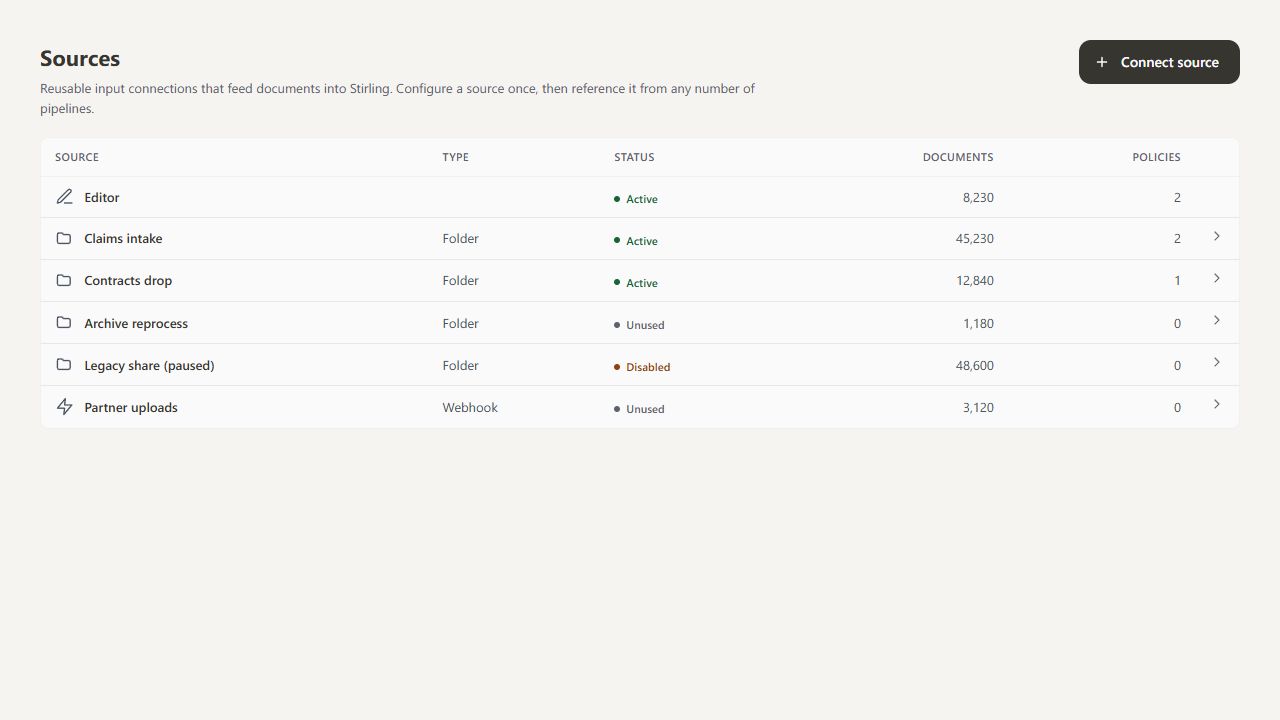
Connect a source#
Select Connect source, choose a type, enter its name and settings, then select Create source. Click an existing row to edit it. The built-in Editor source is always present and cannot be edited or deleted.
| Type | Input | Destination |
|---|---|---|
| Editor | Files uploaded or exported in the editor | The modified document, back in the editor |
| Folder | Yes, self-hosted only | Yes, self-hosted only |
| Amazon S3 | Yes | Yes |
| SFTP | Yes | No |
| FTP | Yes | No |
| Network drive (SMB) | Yes | No |
| Webhook | Yes | No |
| Vector database | No | Yes, for Ingestion |
Editor#
The Editor source runs a pipeline on the files people work on in the Stirling PDF editor. It runs automatically for everyone in the pipeline's team, at one of two moments:
| Trigger | When it runs | What people get |
|---|---|---|
| Every upload | As soon as a file is uploaded or opened in the editor | The processed file replaces the original in the editor. |
| Every export | Just before a file leaves the editor, when someone downloads or prints it | The download is the processed file. When printing, the file is updated first; review it, then print again. |
While a pipeline runs, the file shows a progress badge. An export pipeline does not run again on a later download unless the file has been edited since, so repeated downloads do not stack watermarks.
A pipeline only runs on files its first step can accept. For most tools that means PDFs; other files pass through unchanged. An editor pipeline can also send its results to a destination, such as an S3 bucket, and leave the editor file as it is.
If a pipeline fails, people see a warning and the file carries on unprocessed. To block it instead, see Enforce as policy.
People can see which pipelines run on their files in the PDF Processor panel on the right of the editor.
Decide what happens to originals#
Folder, S3 and network inputs have an After processing setting under Advanced.
| Option | What happens |
|---|---|
| Delete the file (default; S3: Delete the object) | Removes the original once every pipeline using it has processed and delivered it. Files that fail stay in place and are not retried until they change or someone selects Process ignored files in source from the pipeline's More actions menu. |
| Keep it, and only process it again if it changes (S3 and network: Keep originals; process changes once) | Leaves the original in place and processes each version once. |
| Keep it, and process it again every scan (S3 and network: Leave it in place) | Leaves the original in place and processes it again on every run. |
Deleting originals needs delete permission on the folder, bucket or share.
Folder#
Under Folder, enter a path on the server, such as /data/processor/inbox. An administrator must allow the folder first; if you see This folder isn't allowed, ask them to add it (Processor server settings).
Folder depth selects the top level only or subfolders too. Change detection under Advanced decides when a file counts as changed: File Metadata (the default) compares size and date; File Metadata & Content also checks the contents, which is slower but more accurate.
Hidden files, symlinked folders and files still being written are skipped. Keep destinations outside the input folder.
S3#
Under Connection, select a saved S3 connection or New connection... to create one (Storage connection settings). Under Folder, enter the key prefix to watch. Leave it empty for the whole bucket; matching keys at any depth are included. As a destination, output is written beneath that prefix. An existing file is never overwritten; the new file gets a different name.
An S3-compatible endpoint on an internal network, such as a self-hosted MinIO, only works once a server administrator allows it (Processor server settings).
SFTP, FTP and SMB#
Under Connection, select a saved integration that uses the matching protocol, or New connection... to create one. Then choose the remote Folder and Folder depth. A blank folder uses the account's home directory; SMB paths are relative to the configured share.
SFTP pins the server's host key on first connect and refuses a changed key. To check the key up front, enter its Host key fingerprint in the connection.
A server on your internal network only works once a server administrator allows its hostname (Processor server settings).
Webhooks#
A webhook source gives you a Delivery URL and a Signing secret. Copy the secret when it is shown: it appears only once. To roll it, recreate the source. Choose the source as the input of an active pipeline, with the webhook trigger, before sending production files.
Send the raw file as the request body to the delivery URL with a binary content type (application/pdf or application/octet-stream) and these headers:
| Header | Value |
|---|---|
X-Stirling-Signature |
sha256= followed by the HMAC-SHA256 hex digest of the exact body, using the signing secret as the key |
X-Stirling-Filename |
Optional filename; defaults to document.pdf |
Content-Length |
Size of the body in bytes; required |
To test from a terminal:
SECRET='your-signing-secret'
SIG=$(openssl dgst -sha256 -hmac "$SECRET" invoice.pdf | awk '{print $NF}')
curl -X POST "<delivery URL>" \
  -H "Content-Type: application/pdf" \
  -H "X-Stirling-Filename: invoice.pdf" \
  -H "X-Stirling-Signature: sha256=$SIG" \
  --data-binary @invoice.pdf
An accepted delivery returns 202. That confirms receipt, not that the pipeline finished; check Documents and Review. An invalid signature returns 401, a disabled source 403, a missing length 411 and a body over 100 MiB 413.
Vector databases#
A vector database source receives the searchable chunks an Ingestion pipeline prepares. Choose a saved Database connection (Integrations) and the Collection / index name, then select this source as the Ingestion destination.
Delete a source#
Open the source and select Delete. A source cannot be deleted while a pipeline references it; change or remove those pipelines first.
