
Connect to Stirling Cloud
Link your server to a Stirling Cloud team to use that team's plan, users and processing allowance. Enterprise servers don't need to link.
Linking gives the server:
- The team's Team plan, with no licence key. Linking never grants Enterprise.
- The team's user allowance.
- The team's processing allowance, in place of the server's own 1,000 units a month.
- Access to Stirling Cloud AI. See Use Stirling Cloud AI from your server.
Processing allowance#
Using the tools by hand never counts. These do:
| Work | Counted as |
|---|---|
| Processor pipelines and policies | Automation |
| Pipeline API steps and MCP tool calls | Automation |
| AI tools | AI |
| PDF tool calls made with an API key | API |
An unlinked server gets 1,000 units a month. A file uses one unit per 25 pages or per 5 MB, whichever gives more. No file uses more than 1,000 units.
When the units run out, automation, AI and API calls stop until the next month. Manual tools keep working.
A linked server uses the team's allowance and Stirling Cloud's unit rules instead.
Nothing is counted on a server with an Enterprise licence. A Team licence key also makes API tool calls free.
Connect your server#
- Make sure login is on, then sign in to your server as the organization owner.
- Open Settings → Workspace → Account connection and select Connect your Stirling account.
- Sign in to Stirling Cloud with an account that owns the team you want to use.
- On Connect this server?, check that the Address is your server, tick I recognise this address and want to connect it to my team and select Connect server.
- Back on your server, check the plan and allowance under Settings → Workspace → Usage & Billing.
Only a Cloud team owner can approve a server. If the address doesn't use HTTPS, Stirling Cloud shows Not an encrypted address.
What is sent#
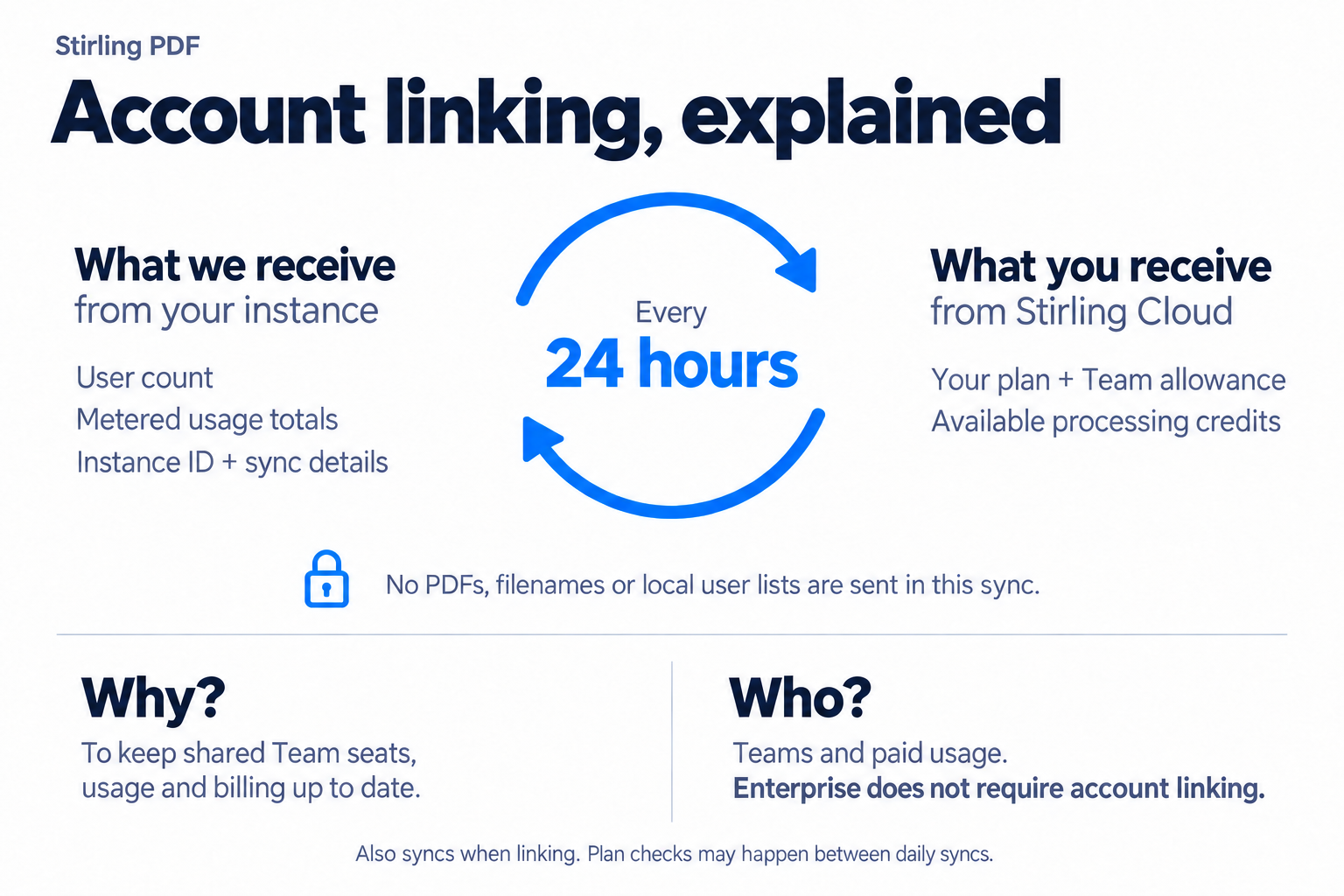
When you connect, the server sends its name and address. It then syncs straight away and every 24 hours: it sends its user count, processing-unit totals and instance ID, and gets back the team's plan, user allowance and remaining credits. No PDFs, filenames or user lists are sent.
If the server can't confirm its plan with Stirling Cloud for 3 days, the Team features and processing that come from the link pause until it reconnects. Installed licence keys and your data are not affected.
Manage or disconnect#
- Account connection lists this server and the team's other connected servers. Manage on stirling.com opens them in Stirling Cloud, where the team owner can rename or remove them (see Teams).
- Disconnect this instance stops using the team's plan and allowance. Files on the server are kept.
