
Pipelines
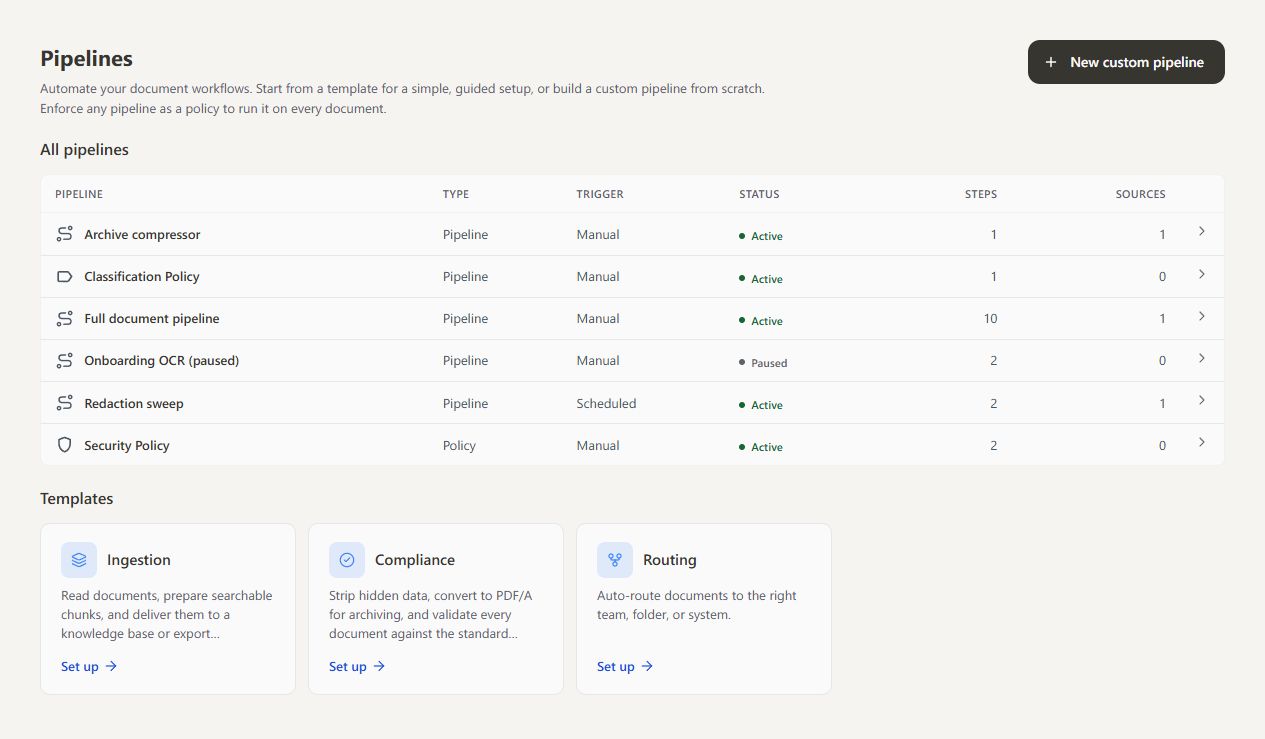
A pipeline is a saved workflow: where documents come from, the steps to run and where the results go. Open Processor → Pipelines to manage your pipelines and policies.
Create a workflow#
Choose New custom pipeline to build one yourself, or select Set up on one of the policies for a guided form.
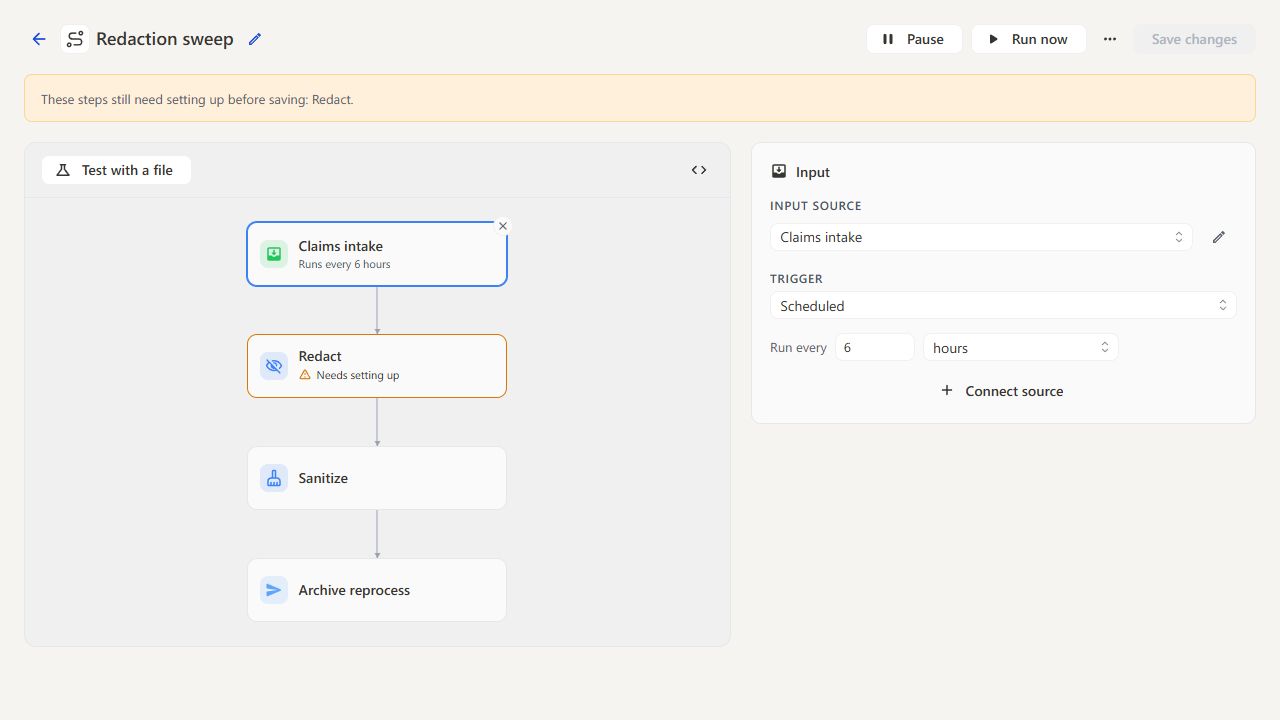
- Name the pipeline and select an input source.
- Choose when it runs.
- Add tools in the order they should run and configure each step.
- Choose a destination, or return the modified document to the editor.
- Test the steps, then select Create pipeline or Create paused.
For a step-by-step example, see Create your first pipeline.
Inputs and triggers#
| Input | Triggers |
|---|---|
| Editor | Every upload or Every export; see Editor |
| Folder | Manual only, Scheduled or Folder watch |
| Amazon S3, SFTP, FTP, Network drive | Manual only or Scheduled |
| Webhook | webhook (runs as each signed delivery arrives), Manual only or Scheduled; see Webhooks |
Steps and supporting files#
Each tool must accept the previous step's output format. A tool can appear more than once, with separate settings for each step.
Integration steps are under Add a tool → Send to another system (Integrations). A Classify step uses AI to label documents for routing; see Classification.
Upload supporting files, such as stamp images or signing certificates, in the step settings. They are saved for future runs and shared within the team. Files must be non-empty and no larger than 50 MB. Referenced files cannot be deleted until removed from the pipeline.
Enforce as policy#
A pipeline with the Editor as its input runs automatically for everyone in the team when they upload or export a file. Enforce as policy decides what happens when it fails:
| When it fails | Ordinary pipeline | Enforced as policy |
|---|---|---|
| On upload | The file stays as it was uploaded, and the failure is reported. | The file is blocked. The person can retry or close it. |
| On export | The file is downloaded unprocessed, with a warning. | The download is cancelled. |
Use it when a rule must hold for every document, such as redacting personal data before anything leaves the editor, or converting to PDF/A before archiving.
Turn on Enforce as policy at the top of the pipeline builder; for defaults in setup forms, see Policies. Enforced pipelines show as Policy in the pipelines list. Only people who can manage pipelines can change it.
Test and inspect output#
Test with a file runs the current steps, including unsaved edits, and returns outputs for download. It does not write to the configured storage destination. External integration calls still run.
After checking the output, run one controlled live input to confirm delivery to storage.
Save, pause, and edit#
Open a pipeline to edit it, then select Save changes.
Pause stops future automatic runs and Activate resumes them. Both take effect immediately and do not save pending step changes.
Destinations#
Folder and S3 destinations save processed files, using a new filename when one already exists. Vector database destinations receive prepared chunks from an Ingestion pipeline.
Editor pipelines can return the modified document to the editor. With routing, the fallback destination receives unmatched files.
