
Compliance
The Compliance policy prepares documents for long-term archiving. It strips hidden data, converts each document to PDF/A, and checks the result meets the standard before it is delivered. By default it runs when people export files from the editor.
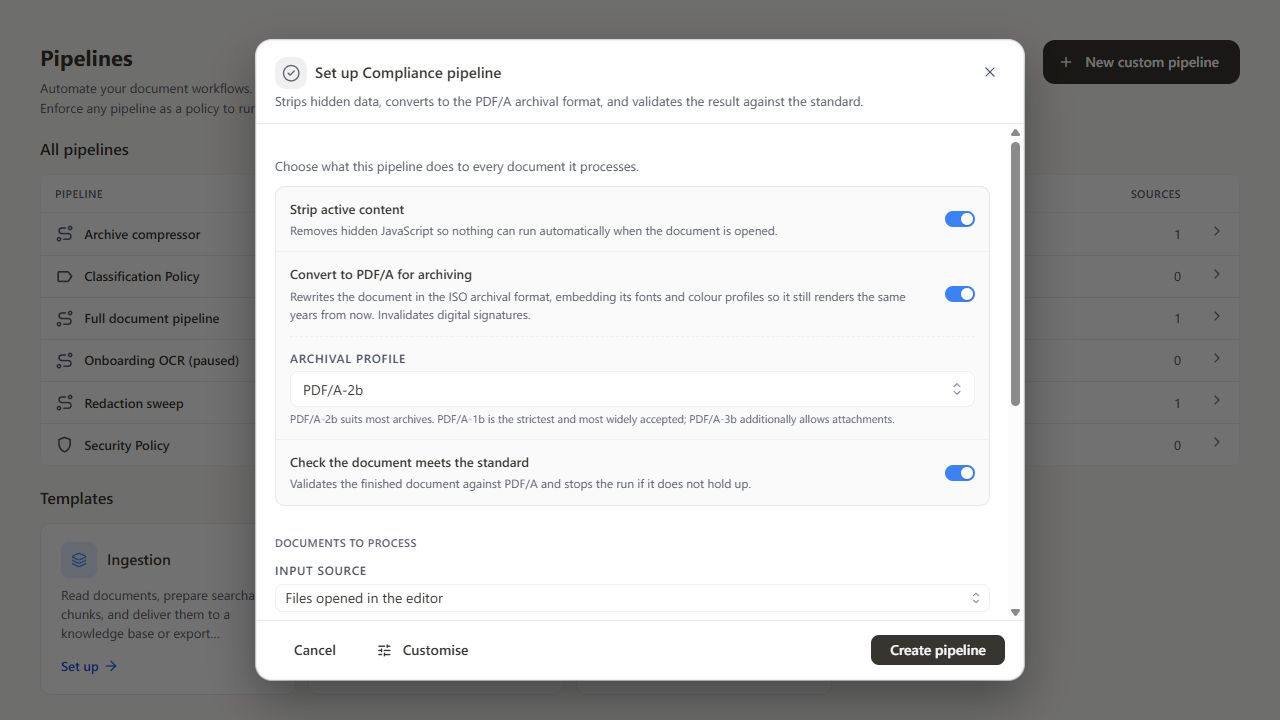
Set up Compliance#
- Open Processor → Pipelines and select Set up on Compliance.
- Keep the actions you need:
- Strip active content removes scripts, attachments, and document metadata. Fonts are kept, because PDF/A requires them.
- Convert to PDF/A for archiving rewrites the document in the archival format. Choose the Archival profile: PDF/A-2b suits most archives, PDF/A-1b is the strictest and most widely accepted, and PDF/A-3b also allows attachments.
- Check the document meets the standard validates the finished file and stops the run if it does not pass.
- Choose the documents to process and where results go.
- Select Create pipeline.
Enforce as policy is on by default, so files that fail the check cannot leave the editor.
Before you roll it out#
PDF/A conversion invalidates existing digital signatures. Convert before signing, or keep signed originals separately.
Conversion and validation failures appear in Review with the reason, so you can fix the source document and try again.
