
Ingestion
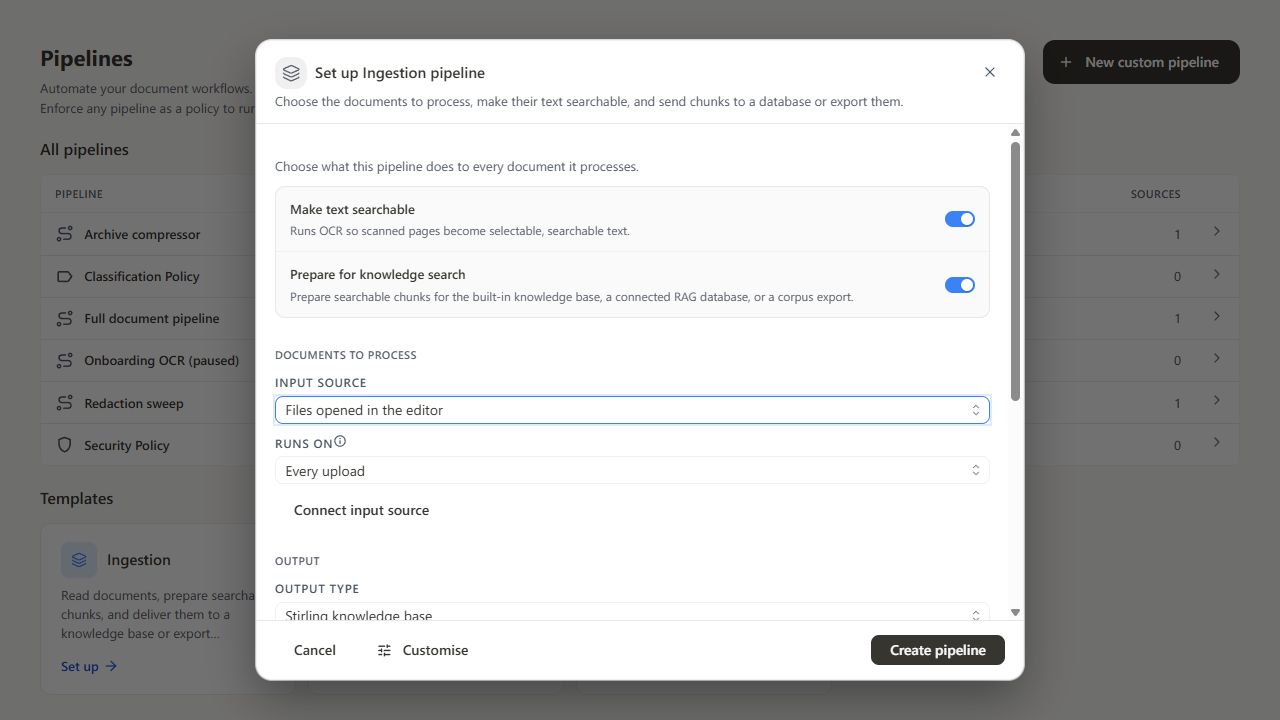
The Ingestion policy prepares documents for knowledge search. Open Processor → Pipelines, find Ingestion under Templates, and select Set up.
The default chain runs OCR, then prepares searchable chunks with the AI engine. On a self-hosted server, an administrator must run the AI engine; chunking does not work through Stirling Cloud AI.
Configure processing#
- Review Make text searchable. The preset uses English OCR; use Customise to change the OCR step's languages when needed.
- Leave Prepare for knowledge search on to prepare chunks. Turn it off if you only need OCR.
- Under Documents to process, choose Files opened in the editor or a saved input source. Use Connect input source if the location is not set up yet.
- Choose when the input runs. Editor input runs on upload or export; other inputs offer the triggers their source type supports.
- Choose the output type and destination described below.
- Resolve any readiness messages, then select Create pipeline.
Choose the output#
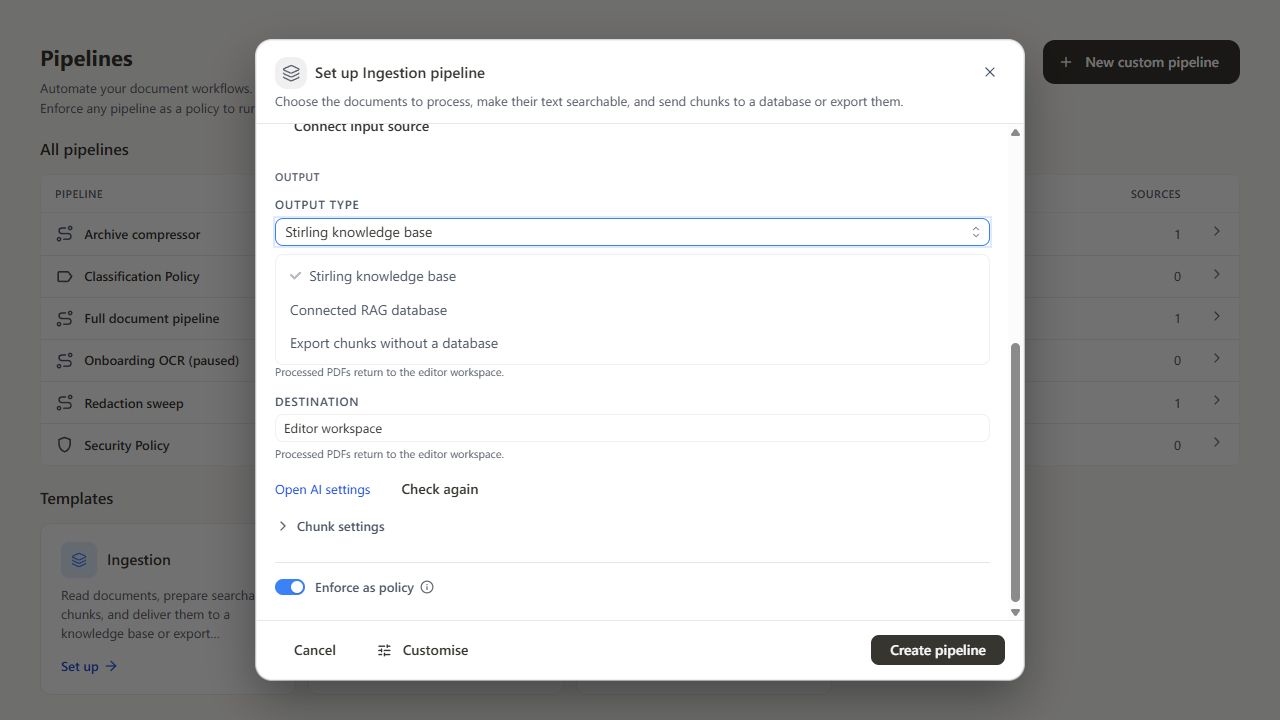
| Output type | Result | Requirements |
|---|---|---|
| Stirling knowledge base | Indexes searchable chunks in Stirling and returns the processed PDF to the selected destination. | Reachable AI engine and a configured embedding provider. |
| Connected vector database | Sends chunks to the selected database, which generates embeddings; returns an indexing receipt. | Reachable AI engine and an enabled vector database source with its connection and collection. |
| Export chunks without a database | Saves the processed PDF and JSONL chunks to the selected destination. | Reachable AI engine; no database or embedding provider needed. |
Select an enabled destination for server inputs and exports. For Editor input, choose Return results to editor or Keep originals and send to a destination.
Adjust chunk settings#
Expand Chunk settings to change how extracted text is divided for retrieval:
| Setting | Default | Accepted values |
|---|---|---|
| Chunk size | 512 |
Whole number from 64 to 32768 characters |
| Overlap | 64 |
Whole number from 0 to 4096, smaller than the chunk size |
Start with the defaults and check retrieval against your documents before changing them. Changing chunk settings does not rebuild documents already stored in a knowledge base.
Check readiness and originals#
Resolve any readiness messages and select Check again. On a self-hosted server, an administrator can open the engine settings from Open AI settings.
Choose what happens to originals with the source's After processing setting. When a processing folder delivers to a vector database, originals are kept.
Test a document, inspect the resulting PDF or export, and try a search in the knowledge base before switching on ongoing ingestion. Use Review to investigate failures.
