
Create your first pipeline
Build, test and switch on a pipeline that compresses PDFs. You need management access.
The editor walkthrough works on Stirling Cloud and self-hosted servers. The folder walkthrough needs a self-hosted server, because Stirling Cloud has no Folder sources.
Compress editor downloads#
- Open Processor → Pipelines → New custom pipeline and name it Compress downloads.
- Choose Editor as the input and set Runs on to Every export.
- Select Add a tool, add Compress and choose the settings. Leave the destination as Editor.
- Select Test with a file and check the result.
- Select Create pipeline.
- Open a PDF in the editor and download it. The download is the compressed file.
An editor pipeline runs for everyone in your team, and each run uses credits (Credits). To read from or deliver to storage instead, connect an Amazon S3 source.
Compress files from a server folder#
An administrator must first allow the folders you use (Processor server settings).
1. Connect an inbox#
- Open Processor → Sources → Connect source.
- Choose Folder.
- Name it Invoice inbox and under Folder enter a path on the server, such as
/data/processor/inbox. - Leave Folder depth at Top level only.
- Expand Advanced. Under After processing, choose Keep it, and only process it again if it changes so testing does not delete originals.
- Select Create source.
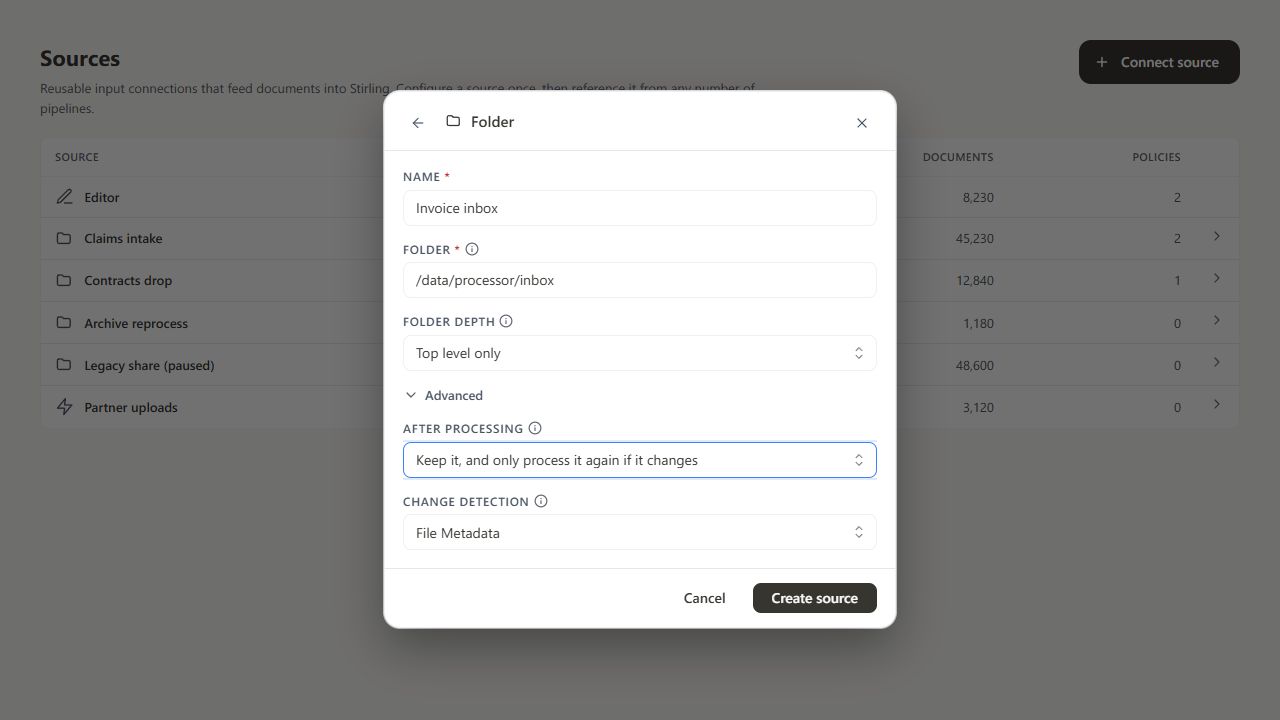
Originals stay in place, and an unchanged file is not processed again.
2. Connect an output folder#
Create another Folder source named Processed invoices, with a path such as /data/processor/processed. Keep it outside the inbox so the pipeline does not process its own output.
3. Build the pipeline#
- Open Pipelines → New custom pipeline.
- Name it Compress incoming invoices.
- Choose Invoice inbox as the input and leave the trigger at Manual only.
- Select Add a tool, add Compress and choose the compression settings.
- Select Processed invoices as the destination.
- Complete any settings the builder highlights.
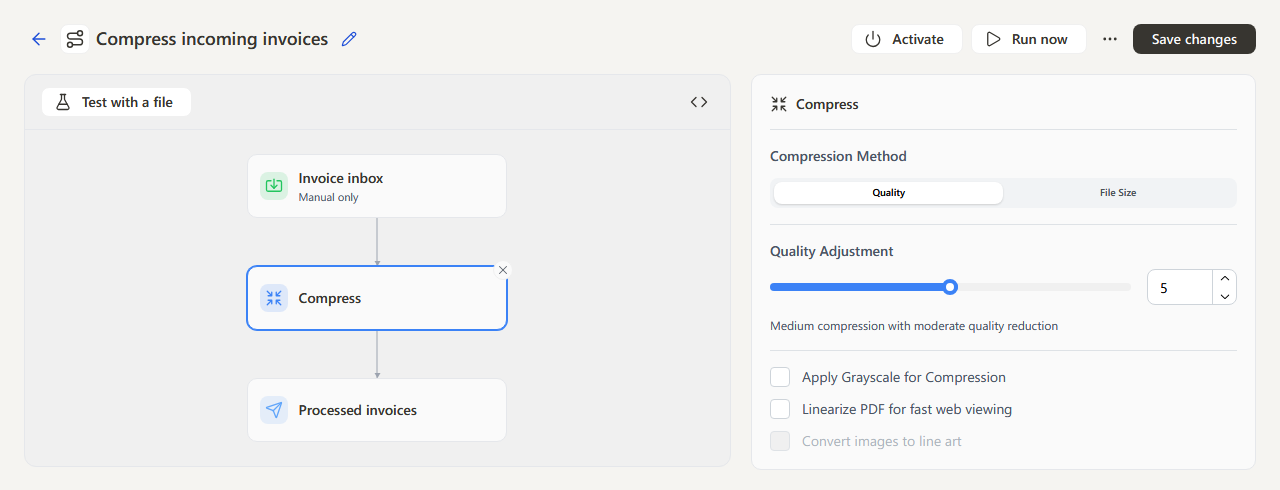
4. Test one document#
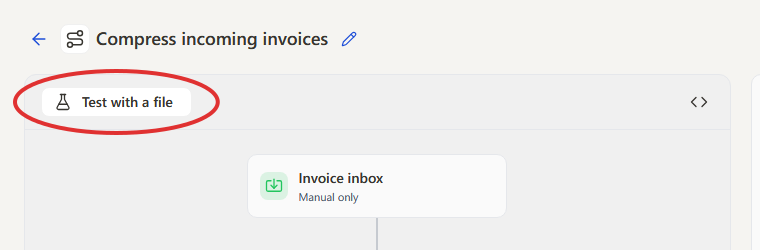
Select Test with a file and choose a sample PDF. The results come back as a download and are not delivered to the destination. Check the content, page count and file size.
5. Save, then turn it on#
Save with Create paused while you finish checking. When you are ready, open the pipeline, change its trigger to Folder watch, select Save changes, then select Activate.
Place a new PDF in the inbox and confirm the result reaches the output folder.
6. Check it runs#
Open Documents for the processing record and Review if a run fails. Before switching the inbox to Delete the file, confirm deliveries work: originals are removed once delivered (Decide what happens to originals).
